
So you've been contacted by a client that wants HTML email signatures set up for their company, what's next?
First: don't panic, and don't quote it as a Tuesday-afternoon job.
“Can you sort out our email signatures?” is one of those requests that sounds tiny and isn't. It sits somewhere between design, code and IT support, and it involves the single worst rendering environment on the internet: the email client. We've been building HTML email signatures since 2013, so we've seen every way this job goes sideways — and every way it goes right. This guide covers both. The manual route first, so you know what you're dealing with, then the streamlined version.

Step one: find out what they're actually asking for
Before you open an editor, get the brief nailed down. Most signature projects blow out not because the HTML is hard but because nobody asked these questions at the start.
- How many people? Five signatures and fifty signatures are different jobs. Ask now.
- What are they sending email from? Google Workspace? Microsoft 365? A mix? Anyone on a Mac using Apple Mail? Anyone insisting on iPhone Mail? (There's always one.) Does the sales team send from a CRM?
- What brand assets exist? You want the logo as a high-resolution PNG with a transparent background, the brand colours as hex values, and the brand fonts — with the understanding that the fonts probably won't survive (more on that below).
- What goes in it? Name, title, phone, mobile, email, website, address, social links, a promotional banner, a legal disclaimer, an environmental “please don't print this” line? Get the field list agreed and get real sample data for two or three people.
- Who looks after it once you've walked away? Remember this question. It comes back.
Set realistic expectations
This is also the moment for the slightly awkward conversation about what an email signature can and can't do. It's a much easier conversation now than after the CEO has forwarded you a screenshot.
- Android is mostly a no. The Gmail app, Samsung Email and most other Android mail apps only support plain-text signatures. There's no way to get an HTML signature onto those phones without going server-side and touching the client's mail flow — which brings its own trade-offs (more on that below). Tell them up front: email sent from an Android phone will carry a plain-text signature at best.
- Reply chains get messy, and that's not on you. Once an email has bounced back and forth a few times through different clients, quoted signatures get restyled, squashed and occasionally mangled. That's the recipient's email client doing whatever it does. What matters is how the signature looks when it first arrives; what happens to it after that isn't up to you, or anyone.
- Fonts, images and dark mode have limits. Brand fonts fall back to system fonts, images can stay hidden until the recipient clicks “display images”, and dark mode will do its own thing with colours. None of this is a defect in the signature.
- So does Gmail. Gmail caps signatures at 10,000 characters, and a heavily designed signature with a dozen social icons, a banner and a legal disclaimer can hit that ceiling faster than you'd think. If you're going the manual route, something will have to give — better to decide what now than to discover it at install time. (There is a way around this. We'll get to it.)
Put this in writing at the brief stage and “it's broken” becomes “yes, we talked about that.”
The manual route: how to build an HTML email signature that survives Outlook
Design for email, not for the web
Everything you know about modern web design, set it gently aside. Keep the signature narrow — around 320 to 450 pixels wide is safe, and anything wider than 600 will get clipped on mobile. Stick to web-safe fonts (Arial, Verdana, Georgia, Tahoma, Trebuchet MS). If the brand font is a custom web font, most recipients will see whatever default their email client falls back to (usually Times New Roman or Calibri), so pick the closest safe fallback and make peace with it.
And resist the urge to make the whole signature one big image. It looks tidy in the mockup and terrible in practice: images are blocked by default in a lot of clients, none of the details are clickable or copyable, screen readers get nothing, and it trips spam filters. Text should be text. Images are for the logo, the headshot, the icons and the banner.
Build it with tables and inline styles
Yes, tables. Email clients — classic Outlook on Windows in particular, which still renders HTML with the Microsoft Word engine — don't support most of the CSS you'd reach for on a website. So the rules are:
- Lay everything out with nested
<table>elements, not<div>s or flexbox. - Put every style inline on the element. No
<style>blocks, no classes — Gmail's signature editor strips them. - Host every image on a reliable, fast server and reference it with an absolute URL. Don't embed images as attachments (recipients see a paperclip and a “download” prompt) and don't base64-encode them (Gmail won't show them at all).
- Set explicit
widthandheightattributes on every image, or Outlook will display it at its natural size. Export images at 2x for retina screens and set the HTML width to half. - Make the contact details work:
mailto:links on email addresses,tel:links on phone numbers, real URLs on the social icons. - Skip background images, CSS shorthand,
max-width, and anything clever. Put padding on<td>cells, not on text or images. Keep the total file small.
Test in more places than seems reasonable
A signature that looks perfect in your browser has told you nothing. At a minimum, send test emails and check them in Gmail on the web, classic Outlook on Windows, the new Outlook, Outlook for Mac, Apple Mail, iOS Mail, Outlook mobile and Gmail on Android. Check dark mode. Then reply to your own test email a few times and see what the signature looks like buried in a quoted thread, because that's where it will live most of its life.
Now install it — for every single person
Here's where the job stops being design work and becomes support work. Each person needs their own copy of the HTML with their own details swapped in, and then it needs to be installed in their email client. Every client does this differently:
- Gmail: you can't paste HTML source into the signature editor. You open the rendered signature in a browser, select it, copy it, and paste it into Settings → See all settings → Signature. Gmail will quietly strip some of your styling on the way in.
- Classic Outlook (Windows): the built-in signature editor mangles HTML, so the reliable method is to drop your
.htmfile directly into%APPDATA%\Microsoft\Signatures. Which means a walkthrough with each user, or remote access. - New Outlook and Outlook on the web: paste the rendered HTML into the signature settings. Reasonably forgiving, and signatures roam with the account.
- Apple Mail: create a placeholder signature, quit Mail, dig into
~/Library/Mail, find the.mailsignaturefile, replace its contents with your HTML, lock the file, reopen Mail. Yes, really. - iOS Mail: it will accept some formatting if you email the signature to the phone and copy-paste it, and it will drop most of the rest. Set expectations.
If the client's IT person suggests doing it server-side instead — a Google Workspace footer or a Microsoft 365 disclaimer rule — know what you're getting. Those append a block to the bottom of the message after it's sent. The sender never sees it while composing, it lands underneath the whole quoted thread on replies, and personalising it per user is fiddly at best.
Then keep doing it forever
Two weeks later, someone new starts. Then someone gets promoted and needs a new title. Marketing wants a banner for the end-of-year promotion, then wants it gone in January. A director “just tweaks” his signature in Outlook and it's now Comic Sans with a photo of a boat. Eighteen months later, they rebrand.
Every one of those is a repeat of the install process, and every one of them lands in your inbox. You've become the signature help desk — and unless you priced that in, you're doing it for free.
So: the manual route works. We did it that way ourselves for years. But it's slow, it doesn't scale past a handful of people, and the ongoing maintenance is where the real cost hides.
The streamlined route: setting the client up in SigStudio
This is exactly the problem SigStudio was built to remove. Here's how to run the same job through it, step by step.
1. Create a Workspace for the client
Workspaces are how SigStudio keeps things separate. Create one per client (or per brand, region or department within a client) and everything for that job — templates, users, images, deployments — lives inside it. You get one login across all of your clients, and nothing bleeds between them. Paid plans include unlimited Workspaces, so the fifth client is no more admin than the first.
2. Bring your design in, or start from a template
If the client already has a design, build it in the Visual Editor without touching code, or paste your own HTML into the HTML Editor for pixel-level control. If they don't, start from one of the 50+ premade templates and restyle it to the brand. Either way, all of the email-client compatibility work — the tables, the inline styles, the Outlook quirks — is already handled. You're designing, not debugging.
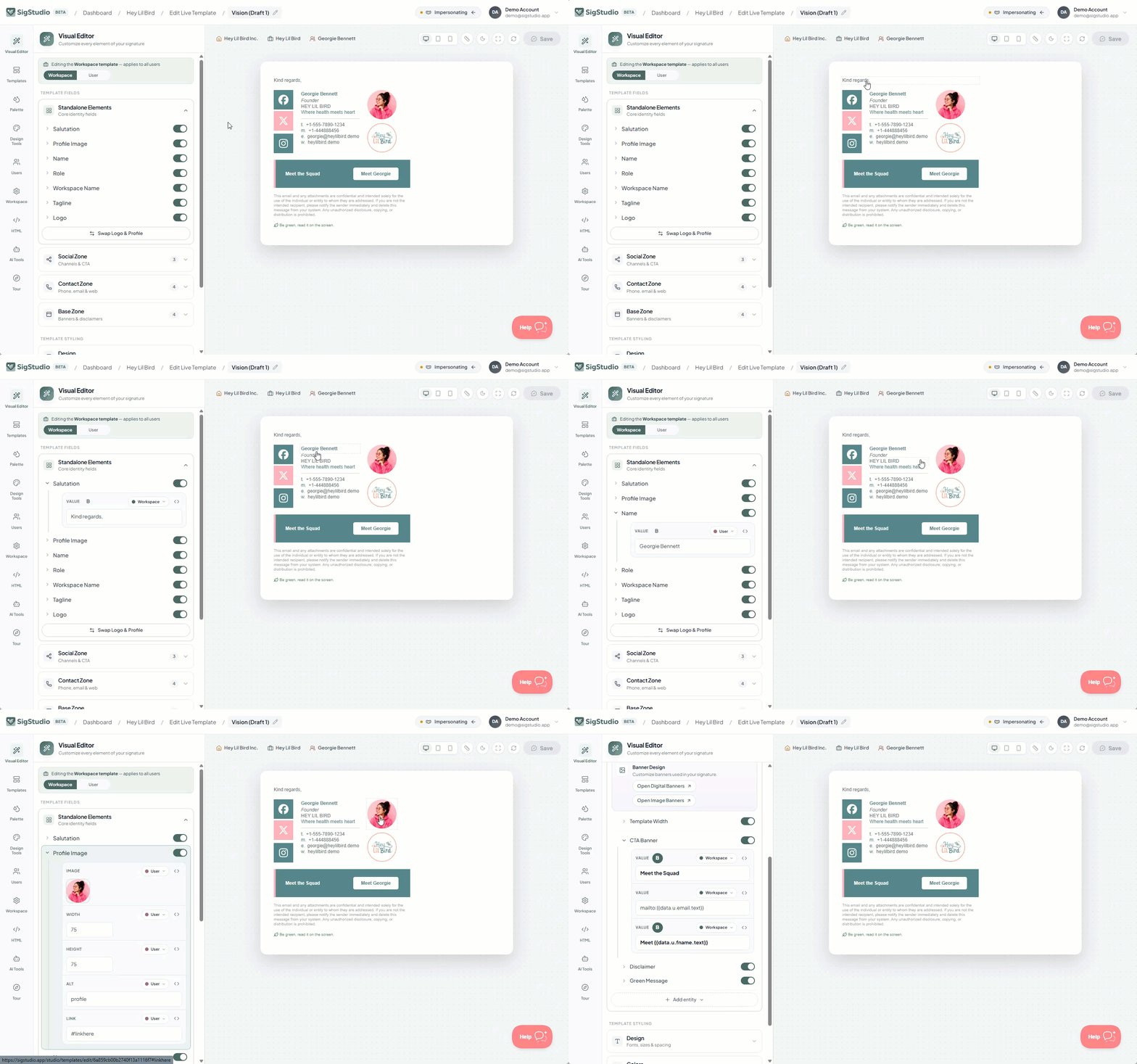
3. Make the assets in Creator Studio
Creator Studio comes with every plan, and it replaces the Photoshop round-trips. Generate social icons in the client's brand colours and shape, build promotional banners and decorative elements, and use the bulk photo uploader to drop in a folder of headshots and have them automatically matched to the right people. The AI tools can tidy up a low-resolution logo or process a batch of team photos so they look consistent.
4. Lock the brand, free the details
Lock fonts, colours and layout at the template level so nobody can drift off-brand. Then decide which fields individual people can turn on or off — a second mobile number, an office address, the promo banner — and set per-user overrides for the one person who needs something slightly different. This is the bit that makes the “director with the boat photo” problem structurally impossible.
5. Add the team in one go
Import the whole staff list from a CSV. Give the client's marketing manager or IT lead an admin role if they want to manage day-to-day changes themselves, and everyone else gets an end-user login. Then check Live Team Previews: every person's signature, rendered with their real details, on screen before anything goes anywhere. Typos get caught here instead of in a customer's inbox.
6. Deploy — without the screen-share
For Gmail, new and classic Outlook and Apple Mail, signatures deploy directly via API. No copy-pasting, no %APPDATA%, no .mailsignature archaeology. For everything else — the 60+ other email clients, mobile apps and CRMs — SigStudio generates HTML files for manual install, and end users can log in and grab their own. Fifty people can be up and running in an afternoon instead of a fortnight.
Gmail deserves a special mention, because this is where the SigStudio browser extension earns its keep. Remember that 10,000-character cap? The extension sidesteps it entirely by inserting the full signature directly into the compose window rather than through Gmail's signature settings — so nothing gets trimmed and the design stays exactly as you built it. It also generates a smaller, Gmail-approved version that fits within the settings limit, so the Gmail mobile app still has a proper signature to work with. And when someone composes from the desktop, the extension removes that lighter version so they never end up with two.
7. Change once, update everyone
This is the part that pays for itself. New banner? Edit the template and redeploy to the whole team. Someone changes title? Update their record. New starter? Add a user. Rebrand? Update the Workspace once and push it out. The maintenance that used to be an open-ended support commitment becomes a five-minute task — and it's a task you can either do yourself as a managed service or hand to the client's admin entirely.
What this looks like as a service
Once the install and the upkeep aren't eating your week, signatures become something you can offer properly: a setup fee for design, build and rollout, and either an ongoing management retainer or a clean handover to the client's team. You deliver a result that looks the same on every device, stays on brand after you've left, and doesn't generate a support ticket every time someone gets a new phone number.
Which is a much better answer to “can you sort out our email signatures?” than the one most people give.
Looking after signatures for more than one client? Let's talk.
If you're a designer, agency or IT provider managing signatures for multiple businesses, book a demo and we'll walk you through setting up your first client Workspace, show you how the deployment works end to end, and talk through pricing across all of your clients.