
What are Brand Profiles?
Brand Profiles let you manage shared brand information across multiple Workspaces from one central location.
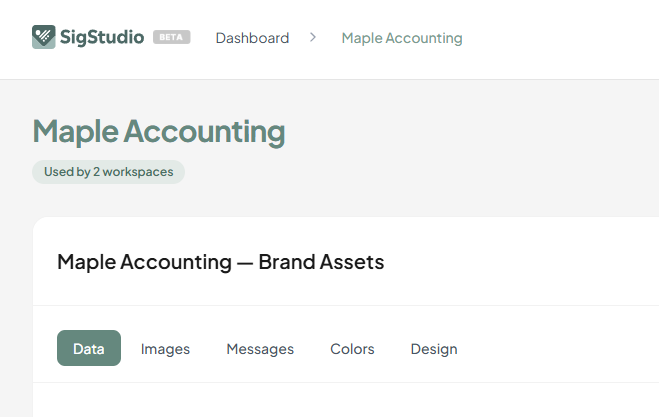
A Brand Profile can contain shared information - such as logos, company details, social links or other images - that can then be linked to fields inside multiple Workspaces.
When information is updated in the Brand Profile, every linked Workspace field is updated automatically.
Example
Imagine you have three Workspaces, each representing a different team, office or brand variation, but all three use the same company logo.
Instead of uploading and maintaining the logo separately in every Workspace, you can:
- Upload the logo once to a Brand Profile.
- Link the logo field in each Workspace to the logo field in the Brand Profile.
- Update the logo once in the Brand Profile whenever it changes.
The updated logo will then flow through to every linked Workspace and its associated email signatures.
Brand Profiles are useful when multiple Workspaces share information but still need to maintain their own unique email signature designs, users or Workspace-specific data.
Creating a Brand Profile
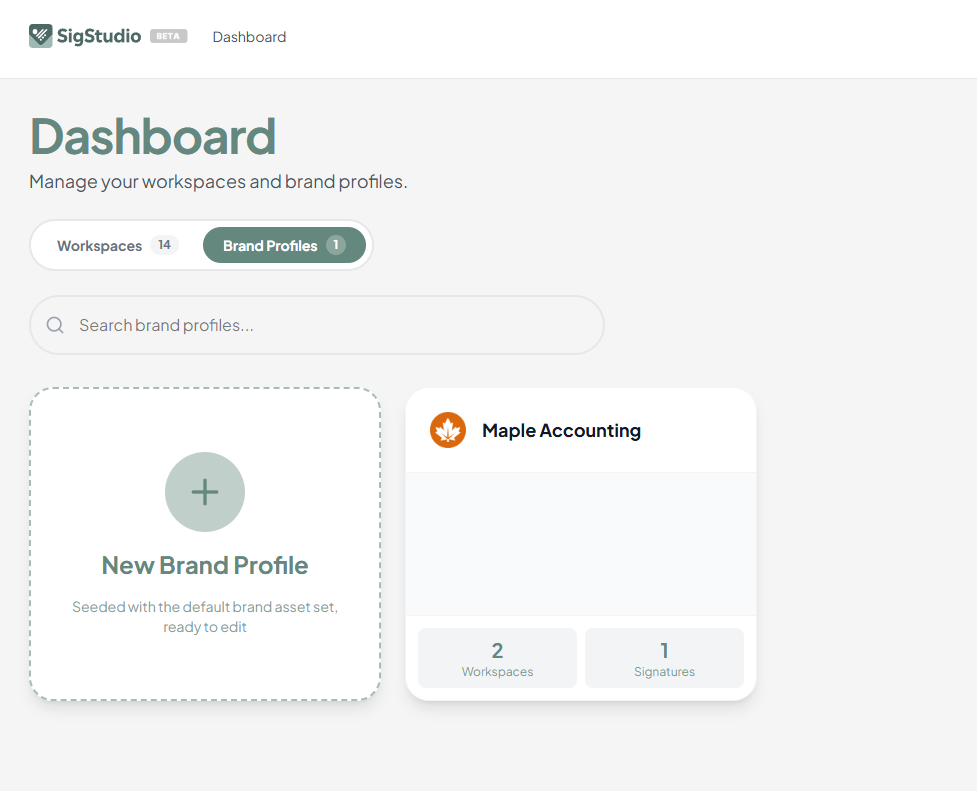
Brand Profiles are created from the Main Dashboard rather than from inside an individual Workspace.
-
Return to the Main Dashboard.
If you are currently viewing a Workspace Dashboard, go back one additional level to the SigStudio app home page.
-
At the top of the Main Dashboard, you will see two tabs:
- Workspaces
- Brand Profiles
- Select the Brand Profiles tab.
- Create a new Brand Profile.
- Enter any information, text or images that you would like to share across multiple Workspaces.
- Select Push Changes when you have finished.
Your Brand Profile is now ready to be connected to your Workspaces.
Connecting a Brand Profile to a Workspace
After creating the Brand Profile, return to the Workspace that you would like to connect.
- Open the Workspace.
- Open the right-hand Workspace tab.
- Select Connect Brand Profile, and then select the Brand Profile you just created.
For any Workspace fields that have corresponding information saved in the selected Brand Profile, you will now see an option in Workspace Data to link the Workspace field to the Brand Profile field.
For example, if the Brand Profile contains a logo, the Workspace logo field can be linked to that Brand Profile logo.
Tip: Brand Profile linking options will only appear when data or an image has been saved in the corresponding Brand Profile field.
Updating Linked Information
Once a Workspace field has been linked to a Brand Profile field, the Brand Profile becomes the source of that information.
To update the information across every linked Workspace:
- Open the Brand Profile.
- Update the relevant text, image or other data.
- Select Push Changes.
The updated information will then be applied to each Workspace linked to that Brand Profile field.
You do not need to update each Workspace individually.
Unlinking a Workspace Field
You can remove a connection between a Workspace field and a Brand Profile at any time.
- Open the Workspace.
- Go to the right-hand Workspace tab.
- Select Edit Workspace Data.
- Find the linked field.
- Select Unlink.
The Workspace field will no longer receive updates from the Brand Profile and can be managed independently.
Unlinking one field does not remove the Brand Profile from the Workspace or affect other linked fields.
Current Visual Editor Support
We are working on integrating Brand Profile management more closely into the Visual Editor.
For now, Brand Profile information must be created and updated from the Brand Profile Data page. Workspace fields must also be linked and unlinked through the Workspace Data page.
Brand Profile fields cannot currently be linked or unlinked directly from within the Visual Editor.